Archive for the 'Apple' Category

An iTunes imagine spot

Thursday, June 10th, 2010

Nik Fletcher writes:

If you’re an iPhone developer, you’ve probably been using AppViz, AppFigures or AppSales Mobile to download an process your iTunes sales reports. Today, however, Apple have released a new app of their own: iTunes Connect Mobile (iTunes Store Link)..

Wouldn't it be cool if they released a version of iTunes Connect that could upload music and movies as well as view app statistics?

Imagine, for example, a moviemaker recording a movie on their iPhone 4, editing it in iMovie on their iPhone 4, and uploading it to iTunes from their iPhone 4.

Useful iTunes smart playlists

Thursday, May 20th, 2010

All of these are “All” (logical and/set intersection) playlists.

Music only

  • Playlist is Music (Library)
  • Kind does not contain “URL”
  • Kind does not contain “stream”
  • Kind does not contain “ideo” [sic]
  • Kind does not contain “PDF document”
  • Genre does not contain “Comedy”
  • Genre does not contain “Spoken Word”
  • Genre does not contain “Podcast”

Never played (music queue)

  • Playlist is “Music only”
  • Play Count is 0

≥ 3.5 stars

  • Playlist is “Music only”
  • Rating is greater than ★★★ · ·

iPod

The goal of this playlist is a balance between churn (so that I keep hearing music I haven't heard in awhile) and quality (so that a bad or mediocre song does not take up space on my iPod that could have gone to a great song).

  • Playlist is “Music only”
  • Skip Count is less than 3
  • Playlist is “≥ 3.5 stars”
  • Time is less than 25 minutes (25:00)
  • Limit to 6 GB selected by least recently played

Customize standards and limit to your requirements.

Classical music (mostly excluded from this playlist by the Time criterion) enters my iPod through a separate playlist: a smart playlist selecting 12 hours of least-recently-played material from my “Programming music” dumb playlist.

Often-played but unrated music

If you're like me, you have a lot of music that has racked up more than a few plays, but that you never rated. Most of this predates my installation of I Love Stars, with which I've rated nearly all of the music I've added since then.

By listening to this playlist with I Love Stars running, I'll be able to rate all of these songs and so give the good-to-great ones a shot at being on my iPod. (I used to have “Play count ≥ 5” in the iPod smart playlist, but not everything that I have that has 5 or more plays merits inclusion on my iPod.)

  • Playlist is “Music only”
  • Play Count is greater than 4
  • Rating is · · · · ·

Setting the iPhone API documentation to iPad display mode on your Mac

Monday, April 5th, 2010

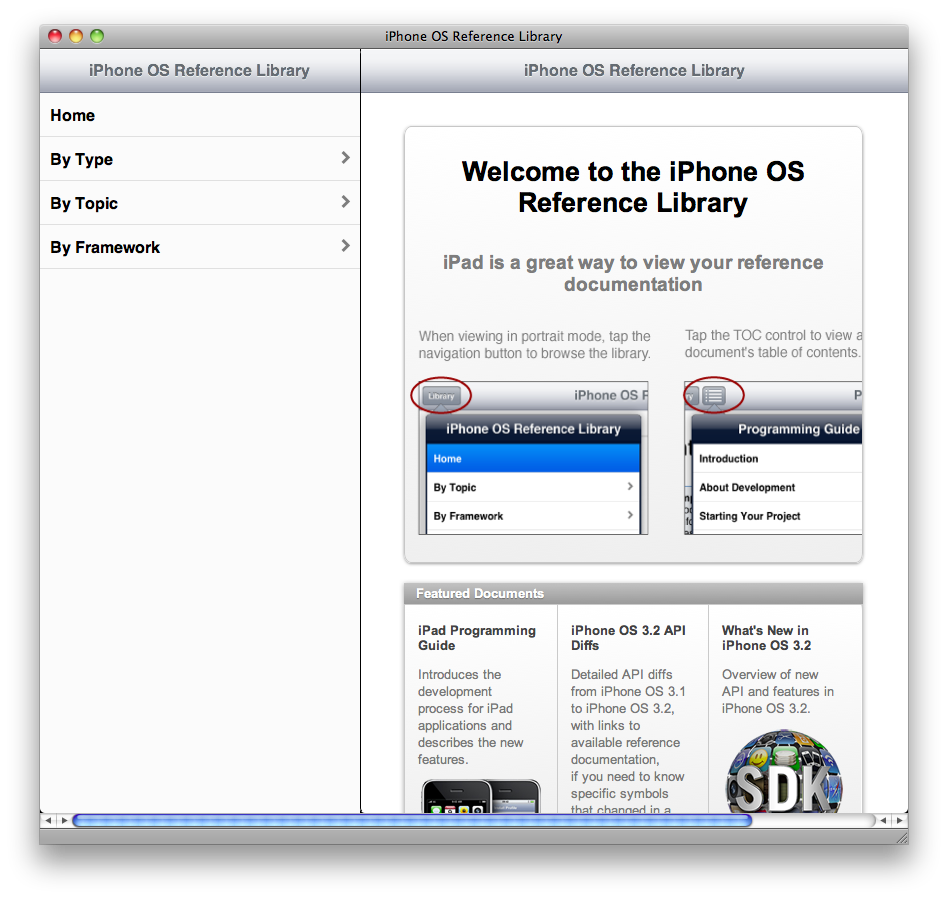
Those who've bought iPads have noticed that the iPhone API documentation comes in a special iPad-optimized flavor:

Basically, like an iPhone app for viewing the iPhone documentation. Here's a screenshot of the page in Safari on my Mac.

Yes, that's desktop Safari showing it.

Contrary to my expectation, it does not use user-agent sniffing to detect an iPad. In fact, it's detected by a JavaScript script (credit) when you go to an iPad-specific front page.

The code has a debugging feature, which they left in and you can (for now) enable to use the iPad display mode in your WebKit-based browser. Here's how to enable it:

  1. Open any page on developer.apple.com.
  2. Open this URL:

    javascript:localStorage.setItem('debugSawtooth', 'true')
  3. Go to the iPad documentation list.

There are actually two interfaces, corresponding to the two orientations of a physical iPad. The one I showed above, with the API tree in a sidebar, is the landscape orientation; portrait moves the API tree into a pop-over, under a button labeled “Library”. The page chooses one or the other by the aspect ratio of the window.

“Sawtooth” has some drawbacks:

  • On a Mac, your scroll wheel (or two fingers) won't work; you must drag the interface instead, which corresponds to finger-dragging on the actual device.
  • Once the interface loads, its size and orientation are fixed; it won't adapt to a window resize until you reload. This, too, is only a problem on a Mac (you can't resize your iPad).
  • There's no way to copy a link to a specific document, unless you can find an internal link (the API-tree table view doesn't count). This can be a problem if you want to link to, say, a framework reference.
  • You can't get the Sawtooth interface unless you go through the iPad front page. If you go to a framework reference, class reference, programming guide, or other more specific page, you'll get the regular interface. Same thing when going through the regular front page.

Even so, it's pretty spiffy. I wish I had a version with all of the above problems fixed for viewing Mac API documentation.

* Credit: JR Ignacio found the JavaScript code and excerpted it into a GitHub paste.

Capture Cursor

Saturday, March 13th, 2010

Most people don't know how to get the cursor that's currently on the screen—a useful ability, especially if you're writing screenshot or screen-recording software. I've written an app that demonstrates the technique, or at least tries to.

It's a bit flaky. The API it uses, IOFramebuffer, doesn't tell me how many frames there are or what format they're in, so the app assumes ARGB in native byte-order and doesn't worry about frames. This gives wrong results more of the time than I like.

I've filed a request for a higher-level API, which would make the task much easier and the app much shorter.

I've posted a build in the repository's downloads area, in case you'd like to see it in action. If you want to build it yourself, you'll need to download SGHotKeysLib and put the source where the Capture Cursor Xcode project expects it to be.

UPDATE 2010-08-28: I've pushed a change, [9cbec7dd5169], that deletes the IOFramebuffer-based category method and uses Snow Leopard's new, far more reliable [NSCursor currentSystemCursor] instead. I suggest you do the same.

Voices That Matter iPhone Developers Conference 2010

Monday, February 22nd, 2010

I'm still Mac-only, so I still won't be there, but here's the information for this year:

  • The conference is in Seattle, Washington on April 24th and 25th.
  • The speakers, including Aaron Hillegass, Jonathan “Wolf” Rentzsch, Erica Sadun, and Eric Buck, will cover many different topics, including Core Data, Core Location and MapKit, in-app purchasing, UI design, and OpenGL ES.
  • Early bird pricing is $200 off until March 12th.
  • If you use the coupon code “PHBLOGS”, you'll get another $100 off.

(I do still wonder what the “PH” stands for…)

If this sounds good to you, register for the conference.

See also Brent Simmons's post about it. He wants to play pinball with you.

An introduction to Cocoa and Cocoa Touch

Wednesday, February 3rd, 2010

If you know someone who's recently taken up programming the Mac or the iPhone (or both), please give them one (or both) of these links:

As a frequent answerer of questions on Stack Overflow, I see certain patterns—not just frequently-asked questions, but also frequently-unasked questions: Things that are biting the questioner that they don't know about.

Sometimes they're thinking about things the wrong way (e.g., using property list objects where they should have a model). Sometimes there is a route to a solution (“my app is slow” “run Instruments”), but they don't know about that route. Often, they'll use wrong terms that are right on another platform (like “member variable”), like a speaker using their native language's pronunciation rules when speaking a foreign one.

To help people over these speed bumps, I've composed an introduction for new Cocoa and Cocoa Touch programmers. (Both of the above links redirect to it.)

If any part of it doesn't help them (i.e., is unclear or wrong), I'd appreciate it if you'd let me know, either here or by email.

finder, a command-line tool

Sunday, January 24th, 2010

Today's Ship-It Saturday is a command-line interface to the Finder.

The two most useful commands are:

  • finder reveal file, which will select the file in a Finder window, and
  • finder update (or updated) file, which will tell the Finder that the file has been updated.

The latter command probably is not too useful anymore, but the command-line tool should work on no less than 10.4, and could probably be recompiled for even older versions of Mac OS X, so you may still have a use for it.

The trilogy is now complete

Saturday, January 23rd, 2010

The third video of last month's meeting is now up. Here are three easy-to-remember links:

  1. http://bit.ly/CHLF2009Leaks1
  2. http://bit.ly/CHLF2009Leaks2
  3. http://bit.ly/CHLF2009WebInsp

You'll notice that the third video is not CHLF2009Leaks3.

Unlike the other two, this one features Scott Ellsworth, our organizer, demonstrating the Web Inspector in WebKit. He starts off in Safari, then switches over to Chrome. He also talks about a profiling tool that's part of Google Web Toolkit called Speed Tracer, although he wasn't able to finish a demo of it in time for the meeting, so he talks about one of the examples instead.

I don't think I'll link these here anymore. If you want to find out about future CocoaHeads Lake Forest videos, subscribe to the CocoaHeads Lake Forest channel on Vimeo.

Lazy Finder

Tuesday, January 19th, 2010

This is an expansion of a reply I wrote to a tweet by Daniel Jalkut. He wrote:

Imagine if the iPhone home screen showed a matrix of "generic" icons before filling in real ones. Mac Finder is a disgrace.

He's referring to behavior introduced in Snow Leopard: When you visit a folder for the first time in a session, the Finder shows every symbolic link and alias with the kUnknownFSObject icon ( this one ), every application with the generic application icon, every file with the generic document icon, and every folder with the generic folder icon, before displaying the item's real icon and then its Quick Look thumbnail.

Compare the environment of SpringBoard (on a non-jailbroken device) to that of Finder:

iPhone Mac OS X

Every item is of one kind: Application.

Items are of any of three kinds: File, folder, and bundle. The Finder must handle each kind differently.

Everything is on one iPhone's worth of flash memory.

Files may be distributed over any number of volumes, local and remote; however, the general case is all files on one hard disk, which is the startup disk.

Because the iPhone doesn't allow background processes, it's the only app running, with only a few built-in, light-on-file-system-access exceptions (the heaviest of which is probably Mail).

Any number of applications may be running, and they may be accessing files on the same volume you're browsing.

Accessing any file in flash memory is as quick as accessing any other file (random access).

Disks are not so predictable: Accessing one file and then another can incur milliseconds of seek time. Doing this repeatedly for dozens or hundreds of files (possibly in multiple Finder windows at different scroll positions) may cause the disk to thrash. You can hope that the OS can put the requests into a favorable order, but you can't rely on it, and there's only so much it can do.

Flash memory is always active.

Most users aren't using flash memory. Hard disks may be spun down to conserve power. If this is the case, the disk will need to be spun up, which can take seconds.

All files (that is, all applications) are local.

Some volumes may be on remote machines, across a local network or the internet; depending on throughput and latency, every access to such a volume can take tenths of a second.

All applications are in one place, making caching of icons or their filenames easy.

Applications aren't the only user-visible bundles, and any bundle can be anywhere.

Compare also how SpringBoard and Finder obtain icons*:

iPhone Mac OS X

Assuming that the icons themselves aren't cached:

  1. Look up the application's icon filename in the bundle's Info.plist (or a cache of icon filenames).

  2. Load the icon from the indicated file.

(All of this may happen inside NSWorkspace and/or Icon Services.)

  1. If the item is a symbolic link or alias, find the original file. If it still exists, start over with it from this step. If it does not exist, jump to step 7.

  2. Get the item's custom-icon bit.
  3. If the custom icon bit is set, open the resource fork (or, for folders and bundles, the resource fork of the “Icon\r”** file) and search for icon resources of ID -16455. (This step probably happens in Icon Services.)

    If this step succeeds, we have the icon.

  4. If the item is a bundle, look up the application's icon filename in the bundle's Info.plist.

  5. Load the icon from the indicated file.

    If this step succeeds, we have the icon.

  6. Identify the item's HFS file type (if available) or its filename extension. For bundles, the file type may be in Info.plist. For bundles and packages, the file type and creator may be in a PkgInfo file inside the item, which would be yet another file open+read.

  7. Look up the icon for the file types (probably using Icon Services). For anything but a document of an installed application, this will be a generic icon (such as the generic application icon). If the icon does come from an installed application, it will need to be read from a file inside that application bundle.

SpringBoard hasn't much to do, it's in a straightforward environment, and the task and environment provide a couple of obvious caching strategies. The iPhone doesn't have as much processing power, but what it has is enough—it can just get and display the icon without being lazy about it.

In fact, SpringBoard probably doesn't even need to be asynchronous about it; all it needs to do is keep three pages of icons (current, next, and previous) in short-term memory. When the user flips one page, drop the farthest page out of the short-term memory cache and load the next one into it.

Meanwhile, on the Mac, getting an icon is not straightforward, and the environment can throw a monkey wrench into the works at any point. Every icon can take dozens, hundreds, or thousands of milliseconds to display, and more icons mean more opportunities for a stall. The solution is to load and show the icons asynchronously and in parallel—but then, what to show in the meantime?

Thus, for the Finder, lazy loading makes sense. The Finder can show you what it has (filenames and other basic metadata) immediately. You can work with those files, scroll to other files, or move through the folder hierarchy without having to wait for icons. And while you do that, the Finder has all the time it needs to asynchronously fetch the icons and, if it's still appropriate, display them.

It's a feature, not a bug.

* I'm speculating, since I don't have the source code to either. These steps are how I would implement each one if I were imitating the current stock behavior.
** “\r” here means, as it does in C, the carriage-return character (U+000D).

The myth of Carbon’s 64-bit unavailability

Monday, January 18th, 2010

There's a recurring myth going around, which goes something like this:

In fact, using Carbon locks you out of 64 bit.

No, it doesn't.

The truth is that some APIs that are part of the Carbon sub-frameworks are not available in 64-bit. Merely linking against Carbon does not mean your app suddenly stops working in the 64-bit world.

Carbon itself is just an umbrella framework. It doesn't have any APIs that it provides immediately; everything comes from either another framework or one of its sub-frameworks.

Examples of the first category include Core Foundation, Core Services (home of Launch Services), and Application Services (home of Core Graphics). Even these are not immune to the myth, as demonstrated by the comment I linked to above: It's on an answer suggesting a Core Foundation function. The answerer referred to it as a “Carbon function” (true in a sense), and the commenter pounced.

Many things that were once explicitly considered part of Carbon, such as the File Manager and Resource Manager, are now part of Core Services. Note that they haven't even been consigned to the Legacy Library!

In the other category, even some APIs that remain strongly identified with Carbon, by being in a direct sub-framework of Carbon, are still at least partially around. One of these is the Carbon Event Manager, which even has the word Carbon in its name. Try registering a hot-key with it in a 64-bit-only app—it'll work. (That one is in the Legacy Library. I should probably file a bug on that.)

What is deprecated and not available in 64-bit, as you can see in the Carbon Event Manager Reference, is anything that you would need to build your application on Carbon. That's what's deprecated: the concept of a Carbon application. Only Cocoa apps remain.

But some parts of “Carbon” are useful for things other than building a Carbon application. You can use them from a Cocoa application, or from a command-line tool.

Those APIs are still around. They are not deprecated, they are still useful, and they are still available in 64-bit. Use them freely.

(Oh, and before anybody mentions it: No, those NSEvent class methods introduced in Snow Leopard are not direct replacements for Carbon Event Manager hot-keys. You'd have to sift through the events yourself, whereas Carbon Event Manager filters them for you and only calls your function when your key is pressed. The correct analogue would be CGEventTap.)

The iPod Radio Remote and Griffin Navigate

Saturday, January 9th, 2010

Some of you know that I use a second-generation iPod nano (the best iPod ever) with an iPod Radio Remote. There are two generations of iPod Remote; here they are side by side:

iPod Remote and iPod Radio Remote

The original is on the left. It was for the 2G iPod (that's what I had, anyway) and possibly some other models. That remote didn't have a radio tuner in it. The one on the right, the one that has a Dock connector and looks like a 2G iPod shuffle, is the iPod Radio Remote.

The iPod Radio Remote never did work with the iPhone and iPod touch. Every introduction of a new iPhone or iPod touch model (including the originals) made clearer that they'd either make a third generation or kill it. Sometime around the time when they introduced the new Apple Remote, they chose the latter.

At some point, Griffin Technology introduced their Navigate. I spotted one today at Walmart for $20 on clearance and snapped it up. Walmart normally sells it for $50, and MSRP is $60.

Not only does the Navigate work with my 1G iPod touch, it adds a display showing the current track. The iPod Radio Remote never had this! The picture on Griffin's website doesn't do it justice; it actually looks much better, as shown in this video:

(If you want to really see how good it looks, click through to the YouTube page and watch it there.)

Like the Radio Remote, the Navigate has a clip. Unlike the Radio Remote, it's not a moving part; it's just a fixed, flexible (but not too flexible, but not too stiff, either) bit of plastic. Time will tell how easy it is to break.

True to its name, you can even use it to navigate your music: It will let you pick a playlist, artist, or album to listen to, and change the shuffle setting. However, it does not let you go straight to a specific song, which makes that feature useless for me. I understand why that limitation exists, though: It would be much more difficult to scroll to it with the Navigate's buttons than with the iPod's own click wheel or touch screen.

Navigating the FM band isn't exactly easy. When moving along the frequency band itself, next and previous move one frequency-stop at a time. You can set presets, but only four of them. It's not at all obvious how to set and use them; I'll leave it to the manual to explain it. Ameliorating this problem is that it remembers the last station you had tuned, so it's not like you're going to have to deal with the preset menu every time you turn on the radio.

I do have a couple of significant problems with it.

The first is that it doesn't remember your volume setting. (The Navigate has its own volume setting, separate from the iPod's; the iPod's volume setting has no effect on audio through the Navigate. This is another difference from the Radio Remote, which had no volume of its own.) The Navigate doesn't have a battery; it relies on the iPod for power, so it goes dead when you unplug it. Then, when you plug it back in or plug it into a different iPod, it's back to the default volume, which is quite loud for me. This will probably grate on me a bit.

The other problem is that it doesn't fit in my iPod touch's Dock connector with its SeeThru hard case on it. My iPod nano doesn't have a case on it, so I don't have that problem with that iPod. If you don't have a case on your iPhone or iPod touch (or other iPod), or you use a different case that won't conflict with Griffin's Dock connector, then this won't be a problem for you.

I hope a future version of the Navigate will remember the volume setting and have a slightly thinner Dock connector so that it isn't blocked by my iPod touch's case. Even now, though, I consider the Navigate a worthy successor to the iPod Radio Remote, primarily because of the display, secondarily because of the iPod touch (and iPhone) compatibility.

Application Locator

Friday, January 8th, 2010

This is a little one, inspired by a Growl discussion list thread. Enter the bundle identifier or name of an application, and Application Locator will reveal it in the Finder.

Free music round-up 2009

Friday, January 1st, 2010

At the end of March of last year, I predicted that I would download more than 11,000 free songs in that year.

The final tallies are in.

I downloaded and added 11,466 free songs within 2009. At the stroke of midnight, I was still catching up on my backlog of Chromewaves; once I'd finished, I had a total of 11,554 free songs that had been published in 2009.

Either way, I met my prediction: I downloaded and added more than 11,000 songs, approximately doubling-and-a-half my library from its size at the start of 2009, for free. (I did buy some music as well, easing my conscience.)

I've refined my stable of sources over the past year. Here's my current list of subscriptions:

Naturally, I also download all of the free songs on iTunes and free songs on Amazon every Tuesday.

For those of you who'd like to follow these sources in your feed reader:

File: Music sources.opml.bz2 Music-sources.opml.bz2

An OPML file of all of the RSS feeds of these sources (except iTunes, Amazon, and Spinner). In Vienna, choose “Import Subscriptions” from the File menu.

UPDATE 2010-01-16: Added New Weird Australia to the list.

RAM disks on Snow Leopard

Friday, October 23rd, 2009

Make RAM Disk still works, which is not surprising, considering it's based on a few built-in commands.

What's changed is that the disk images system is now 64-bit, so if you have a 64-bit-capable Mac, you can create a single RAM disk bigger than 2 GiB—you no longer need to make multiple RAM disks and RAID them.

How not to use UTIs

Tuesday, September 22nd, 2009

John C. Welch has written an article telling you to use UTIs to replace creator codes.

It is wrong.

Daring Fireball, rosscarter.com, and (the most sober of the bunch), TidBITS have all gotten on the "Apple has abandoned creator codes, now we're screwed, damn you Apple" bandwagon. They're all right about one thing: Apple has dumped creator codes in Snow.

So before you panic, there's a replacement mechanism, the UTI, or Universal Type Identifier.

No. Uniform Type Identifiers are a replacement for type codes (and MIME media types, and filename extensions), not for creator codes. There is no replacement for creator codes.

Uniform Type Identifiers are just that: They identify types of data. Using them for anything else is misusing them.

Ideally, Coda should assign an application-specific UTI for CSS files it creates.

No, it should not.

As it turns out, Coda is a UTI-aware application, and according to Coda's info.plist file, that identifier is com.panic.coda.css.

And that identifier is wrong, because CSS is not Panic's format.

I use CSSEdit. Currently, it doesn't declare a UTI, but if they should follow Coda's example, they should make one up of their own, such as com.macrabbit.cssedit.css. Now we have one type with two names. Which is right?

Suppose I write an application that accepts CSS data. Which UTI do I look for: com.panic.coda.css or com.macrabbit.cssedit.css? Should I look for both of them? What if I find both? What if a third developer releases a CSS editor? Now I have to keep up with the entire population of Mac CSS editors just to accept all the many names for one type.

The right type identifier would be something like org.w3.css or org.w3.cascading-style-sheets, following the rule that the type should be named after whoever controls it. The W3C controls CSS, so its UTI should be named after them. Some other formats, such as PNG, aren't controlled by anybody, so they go in public.

You might point out public.html and public.xml, as both of those are also controlled by the W3C. Obviously, I disagree that these should be in public.*. But it's too late to change them now, so we have to put up with them.

Better examples include com.adobe.pdf and com.microsoft.word.doc. In each of these cases, some third party controls the format, so they get the format's UTI named for them. Notice that Preview does not invent a com.apple.preview.pdf UTI, and TextEdit does not invent a com.apple.textedit.word.doc UTI; they use the UTIs named for the creators and maintainers of those types.

So now we see a problem. All the text-ish files have the same type identifier: com.apple.traditional-mac-plain-text.

Because they are all the same type. And that type is named after Apple because Apple controls that format (in this case, a text encoding).

The Photoshop PNG file is typed as public.png.

There's no such thing as a “Photoshop PNG” file. PNG is an open format controlled by no-one (or, arguably, the W3C, in which case the type should have been named for them). What you have is a PNG file that you created in Photoshop. That latter detail is irrelevant to its type, which is why HFS had the creator code separate from the type code in the first place.

If there is such a thing as a “Photoshop PNG” file (that is, if Adobe incompatibly extends the PNG format in some way), then they should assign that format its own name (say, com.adobe.png), because it's a different format.

If you take away the creator code, you're screwed, because all you have are the extensions.

Exactly why John Gruber, Ross Carter, and Matt Neuberg don't like the change.

Coda CSS file props:

displayed name:"test.css",
creator type:"TStu",
type identifier:"com.apple.traditional-mac-plain-text",

I'm surprised you didn't notice this. Why isn't this file's type identifier com.panic.coda.css?

… why aren't any of these applications doing the right things? Pages '09 does. It sets the type for .pages files to "com.apple.iwork.pages.pages".

Because it's Apple's own format specifically for Pages. Again, see also com.microsoft.word.doc.

Unsurprisingly, it doesn't even have a creator code.

Yeah. Cocoa makes it difficult to apply a creator code to a file and doesn't do it automatically, so expect most Cocoa apps to not do it.

Even thought the default for the .html extension is BBEdit, the UTI overrode that. When I changed the handler for public.html to BBEdit, then the file opened in BBEdit. That's exactly the behavior I'd expect, and it matches what you got with Creator Codes.

It matches what you got when you assigned the default handler of a file type, as well. That's what you did the newer equivalent of.

There never was a way to set which application opened files that had a given creator code. That was what the creator code was for: Determining which application would opened the file.

Yes, Apple did abruptly kill off Creator Codes, however, they've been warning about that for some time now.

Sort of. They've been warning that they'd kill off the combination of file type codes and creator codes. UTIs are the replacement for file type codes; as I said above, there is none for creator codes.

Now, I know that 'simple' is a big fat lie when it comes to application development, however, at some point during the 10.5 lifecycle, all these applications should have been updated to not only support UTIs, but to use them. Instead, they all relied overmuch on FIle Types/Creator Codes …

Actually, it was more common to use filename extensions. See what I said above about the difficulty of assigning file types and creator codes from a Cocoa app. I think that was actually quite rare, simply because filename extensions were so much easier.

… and now that those are gone, well, the OS does what it can with the information it has available.

No, it doesn't. The creator code information is still available, and the OS ignores it. The OS now only uses type information to determine how to open a given file, except for files that the user has assigned a specific application to.

Oh, and what about when you change a file association in the Finder? Well, unsurprisingly, the Finder cheats. It adds a resource fork to the file with the path to the desired application coded within. … [M]aybe the Finder could start doing the right thing too?

Agreed. I say it should set the file's creator code.

Incidentally, I tested in Tiger, Leopard, and Snow Leopard, and Finder did this resource trick in all three versions. If the Info window ever did set the file's creator code, it hasn't done that for many years.

If the only way to have a unique UTI associated to a file is for that file to use a completely unique file extension, then WHAT THE FUCK GOOD ARE UTIS? Fucking seriously, why the FUCK bother? BBEdit creates TEXT FILES. Does Apple seriously expect that Bare Bones, to properly use UTIs, is going to now create a .bbedittext extension, a .bbedithtml extension, a .bbeditohmyfuckinggodwhatthefuckisgoingon extension, then make you EXPORT to 'standard' extensions, just so you can know a file created in BBEdit will open in it?

And now you know why smashing type information and creator/opener information into a single value is a bad thing.

If this is what Apple is pushing, then everyone who signed off on non-settable UTIs is a fucking idiot…

There is no reason why the average user should be able to change the type of a file. If they created an HTML file, it's an HTML file, and there's no reason for a user to be able to set it to anything different unless they really know what they're doing. (I've done it, and I'm assuming you have, too. We're exceptions.)

What you want to do is to change which application opens the HTML file, and that is completely separate from the fact that the file contains HTML.

TimeMachineGrowler 1.0.1

Saturday, September 5th, 2009

The new version of TimeMachineGrowler includes compatibility with Snow Leopard and a few fixes. Plus, I've created a Google group for it, so you can get news of any further updates there.

TimeMachineGrowler 1.0

Thursday, August 27th, 2009

Just in time for tomorrow's release of Snow Leopard, TimeMachineGrowler is an app that will tell you how long Time Machine takes to create a back-up by posting Growl notifications when the back-up starts and finishes.

One of the promised “refinements” in Snow Leopard is faster back-ups, so you may find it interesting to compare how long a back-up takes on your machine running Leopard to how long it takes on Snow Leopard (assuming, of course, that you haven't already abandoned Leopard for the Snow Leopard GM).

Copy UNIX path to Finder selection

Thursday, August 13th, 2009

UPDATE 2009-08-14: Or just use CopyPath, which looks like a much better implementation of exactly the same thing. Thanks to David Keegan, its author, for suggesting it in the comments.

The original post content follows.


This is a script application, which apparently you can drag into your Finder toolbar. (If it doesn't let you, you didn't drop it in the right spot. Finder is finicky about this. Keep trying.)

Once you've added it to your toolbar, you can just click on it to run it. The script will copy the UNIX path of whatever you have selected in Finder to the clipboard.

Inspired by a conversation with Alan Boyd.

Here, have a coupon

Sunday, July 26th, 2009

Voices That Matter: iPhone Developers Conference
October 17th and 18th.

This October 17th and 18th, there's a conference for iPhone developers in Boston, which the organizers asked me to attend.

The conference is called Voices That Matter: iPhone Developers Conference, and the titular voices include Aaron Hillegass (famous for his book), Erica Sadun (famous and infamous for her jailbreak work and advocacy), Bill Dudney (famous for his book), Stephen Kochan (somewhat famous for his book), Jonathan “Wolf” Rentzsch, Fraser Speirs, and Daniel Jalkut.

As most of you know, I'm not an iPhone developer—I write for the Mac only. So I declined that part of the offer.

The other part was a coupon for you, my readers. I know many of you probably are iPhone developers, so I asked whether they would still like me to give you that coupon code. They agreed, so here it is:

PHBLOG

(Those of you who read Jesper's weblog may recognize it.)

Without the coupon, the registration fee is $495 until September 12th, $695 thereafter. The Word document they sent me says that that the coupon will knock $100 off.

Enjoy the conference!

Manpage Monday: PlistBuddy(8)

Monday, April 13th, 2009

PlistBuddy(8) is a command-line tool for editing property-list files, with a deeper reach than plutil defaults:

Entries consist of property key names delimited by colons. Array items are specified by a zero-based integer index. Examples:

  :CFBundleShortVersionString
  :CFBundleDocumentTypes:2:CFBundleTypeExtensions

Jonathan “Wolf” Rentzsch, in his del.icio.us bookmark for the manpage, says that PlistBuddy is “always at /usr/libexec/PlistBuddy on modern systems”.

Bad Behavior has blocked 250 access attempts in the last 7 days.